
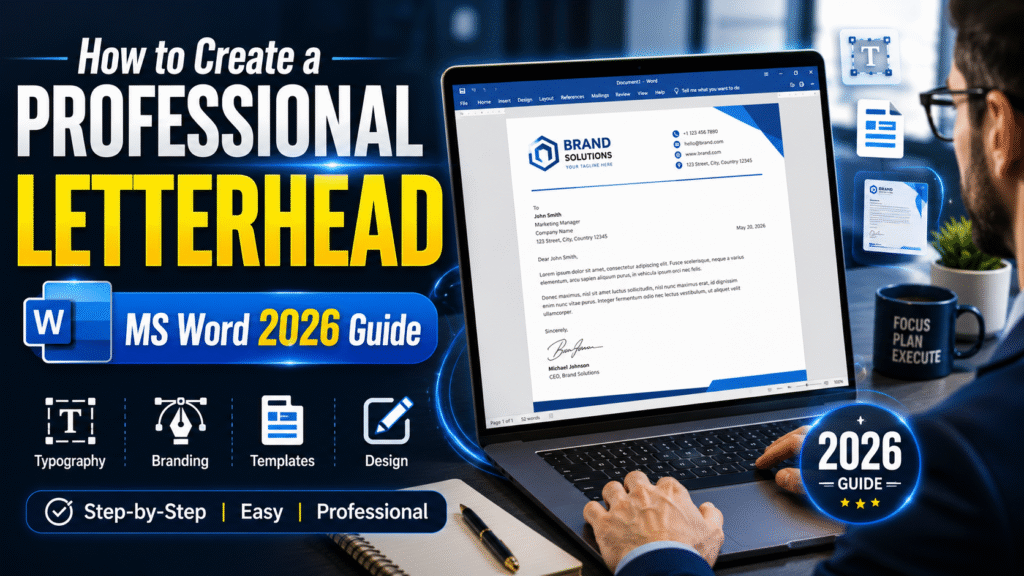
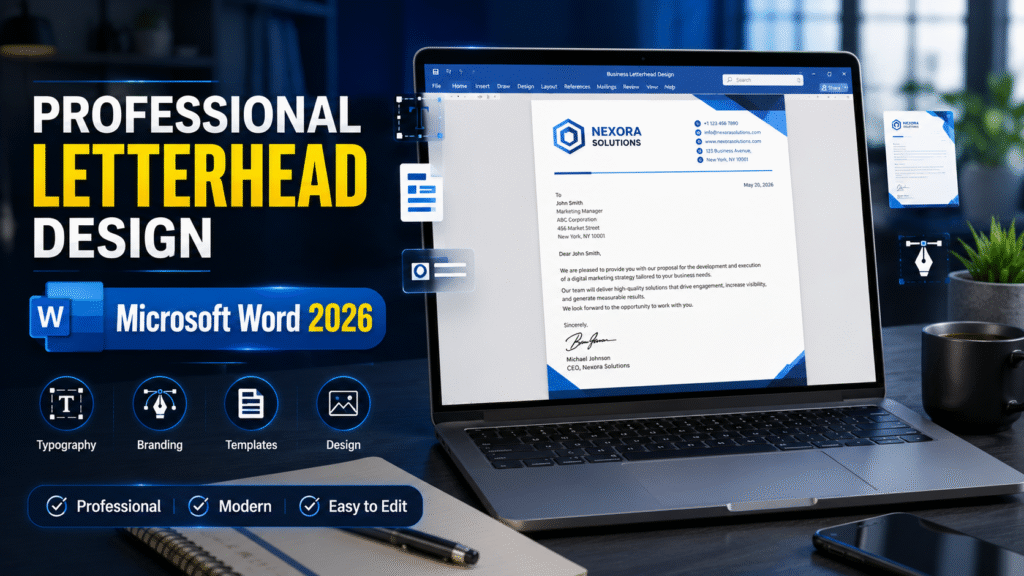
Creating a Professional Letterhead in Microsoft Word is one of the most valuable branding skills for businesses, freelancers, teachers, office employees, and students in 2026. A professionally designed letterhead helps improve business credibility, strengthens brand identity, and makes official documents look modern and trustworthy. In this complete step-by-step guide, you will learn how to create a professional letterhead in Word using modern formatting techniques, business branding strategies, typography tips, and professional layout design without needing expensive graphic design software.
Complete 2026 Guide Professional Letterhead
How to Create a Professional Letterhead in Microsoft Word
Step-by-step instructions, expert design tips, and proven branding techniques to make your business documents look modern, professional, and trustworthy.
Your business professional letterhead is far more than just a decorative header. It is a professional identity that represents your company, brand values, and communication standards. Whether you run a business, work in an office, teach at an institution, or freelance online, a professionally designed letterhead instantly builds trust and authority.
Many people assume they need expensive software like Adobe Illustrator or Photoshop to design an impressive letterhead. In reality, Microsoft Word already contains powerful design and layout tools capable of producing highly professional business documents.
In this detailed 2026 guide, you will learn exactly how to create a professional letterhead in Microsoft Word from scratch. We will cover design principles, formatting techniques, branding strategies, layout balance, typography selection, and modern best practices used by successful businesses worldwide.
- Why professional letterheads matter
- Essential elements every letterhead should include
- Step-by-step Word letterhead creation process
- Professional branding and design tips
- Common mistakes to avoid
- How to save reusable templates
- How to export print-ready PDFs
Why a Professional Letterhead Matters
In the digital business world, first impressions still matter enormously. Whenever you send a proposal, invoice, business letter, or official notice, the visual quality of your document affects how seriously people take your message.
A professionally designed letterhead helps establish instant credibility and trust. It communicates that your organization pays attention to detail and values professional presentation.
🏛️ Builds Business Credibility
A branded letterhead immediately positions your organization as legitimate and trustworthy. Clients are more likely to trust businesses that use professionally formatted communication.
🎯 Strengthens Brand Identity
Consistent use of logos, typography, and colors increases brand recognition across all communication channels.
💼 Improves Professional Communication
Official letters, contracts, and reports appear more authoritative and polished when presented on company letterhead.
📈 Supports Marketing Efforts
Every document you send becomes a branding opportunity that reinforces your business identity.
Key Elements Every Letterhead Must Include
Before opening Microsoft Word, you should understand the essential components that make a letterhead effective and professional.
| Element | Description | Priority |
|---|---|---|
| Business Logo | High-quality PNG or vector logo | Essential |
| Company Name | Main business identity text | Essential |
| Contact Information | Phone, email, website, address | Essential |
| Brand Colors | Consistent company color palette | Recommended |
| Tagline | Short business slogan | Optional |
| Footer Design | Bottom decorative or contact section | Recommended |
Step-by-Step Guide to Create a Professional Letterhead in Word
Open a Blank Document
Launch Microsoft Word and create a new blank document.
Navigate to:
File → New → Blank Document
Starting with a blank document gives you complete flexibility for your custom design.
Set Professional Margins
Proper spacing creates balance and readability.
Go to:
Layout → Margins → Custom Margins
- Top Margin: 0.5 inch
- Bottom Margin: 1 inch
- Left Margin: 1 inch
- Right Margin: 1 inch
Open Header Section
Double-click the top area of the page to activate the Header section.
Alternatively:
Insert → Header → Edit Header
The header area will contain your company branding and contact information.
Insert Your Business Logo
A professional logo is the visual identity of your organization.
Go to:
Insert → Pictures → This Device
Select your logo and insert it into the header section.
Professional Logo Tips
- Use transparent PNG format
- Maintain aspect ratio while resizing
- Avoid blurry images
- Keep placement clean and balanced
Add Company Name and Tagline
Choose clean and modern typography.
Recommended Fonts
- Montserrat
- Poppins
- Lato
- Calibri
- Cambria
Use larger font size for the company name and smaller text for the tagline.
Insert Contact Information
Add:
- Business Address
- Phone Number
- Email Address
- Website URL
Keep the formatting simple and easy to read.
Add Decorative Design Elements
Professional letterheads often include elegant lines or subtle design accents.
Go to:
Insert → Shapes → Line
Use your brand color for visual consistency.
Create Footer Section
The footer completes the visual structure of the document.
You can add:
- Website URL
- Company registration number
- Social media handles
- Copyright text
Professional Design Tips for Modern Letterheads
1. Keep the Design Minimal
Minimalistic layouts always appear more premium and professional than overly crowded designs.
2. Use White Space Effectively
White space improves readability and creates visual balance.
3. Maintain Brand Consistency
Use consistent fonts, colors, and alignment throughout the document.
4. Limit Font Usage
Using too many fonts creates visual confusion. Two font families are usually sufficient.
5. Choose Professional Colors
Corporate colors like navy blue, dark gray, green, and black create stronger professional impressions.
Best Color Combinations for Letterheads
| Industry | Recommended Colors |
|---|---|
| Corporate Business | Blue + Gray |
| Technology | Black + Blue |
| Healthcare | Green + White |
| Education | Navy Blue + Green |
| Creative Agencies | Orange + Dark Gray |
Common Mistakes to Avoid
- Using low-quality logos
- Adding too many colors
- Overcrowding information
- Using decorative fonts excessively
- Ignoring alignment consistency
- Using poor print settings
- Forgetting to test on A4 paper
How to Save Your Letterhead as a Template
Once your design is complete, save it as a reusable template.
Go to:
File → Save As → Word Template (.dotx)
This allows you to reuse the same design for all future official documents.
How to Export as PDF
PDF format preserves formatting and ensures compatibility.
Navigate to:
File → Save As → PDF
PDF documents are ideal for:
- Email communication
- Online submissions
- Official records
- Professional printing
Advanced Tips for Businesses
Use High-Resolution Graphics
Always use 300 DPI graphics for professional printing quality.
Align Elements Precisely
Use Word’s ruler guides and alignment tools for a polished appearance.
Test on Multiple Devices
Review your letterhead on desktop, laptop, and mobile PDF viewers.
Create Both Digital and Print Versions
Some colors look different in print compared to digital screens.
Frequently Asked Questions
Can I create a professional letterhead without graphic design skills?
Yes. Microsoft Word includes beginner-friendly tools that make professional letterhead design accessible to everyone.
Which font is best for business letterheads?
Montserrat, Poppins, Lato, Calibri, and Cambria are highly recommended professional fonts.
Should I save my letterhead as PDF?
Yes. PDF format preserves formatting and ensures professional appearance across all devices.
Can I use background images in Word letterheads?
Yes, but use subtle and lightweight designs to maintain readability.
Is Microsoft Word suitable for professional branding?
Absolutely. Many businesses use Microsoft Word for creating official branded documents and templates.
Final Thoughts
Creating a professional letterhead in Microsoft Word is one of the smartest branding investments for any organization, freelancer, teacher, or office professional. It improves communication quality, builds trust, and strengthens business identity without requiring expensive software or advanced design skills.
By following the step-by-step process explained in this guide, you can easily create a modern, elegant, and professional business letterhead suitable for proposals, contracts, invoices, official notices, and corporate communication.
The most important principles are consistency, readability, branding, and simplicity. Focus on clean layouts, balanced spacing, high-quality graphics, and professional typography to achieve the best possible results.
A strong letterhead quietly promotes your business every time you send a document. Design it carefully, save it professionally, and use it consistently across all communication channels.